From project folder to a build you can check
frameDock runs on your PC. It finds the tools your game needs, builds it in an isolated copy and hands you a ZIP you can check file by file.
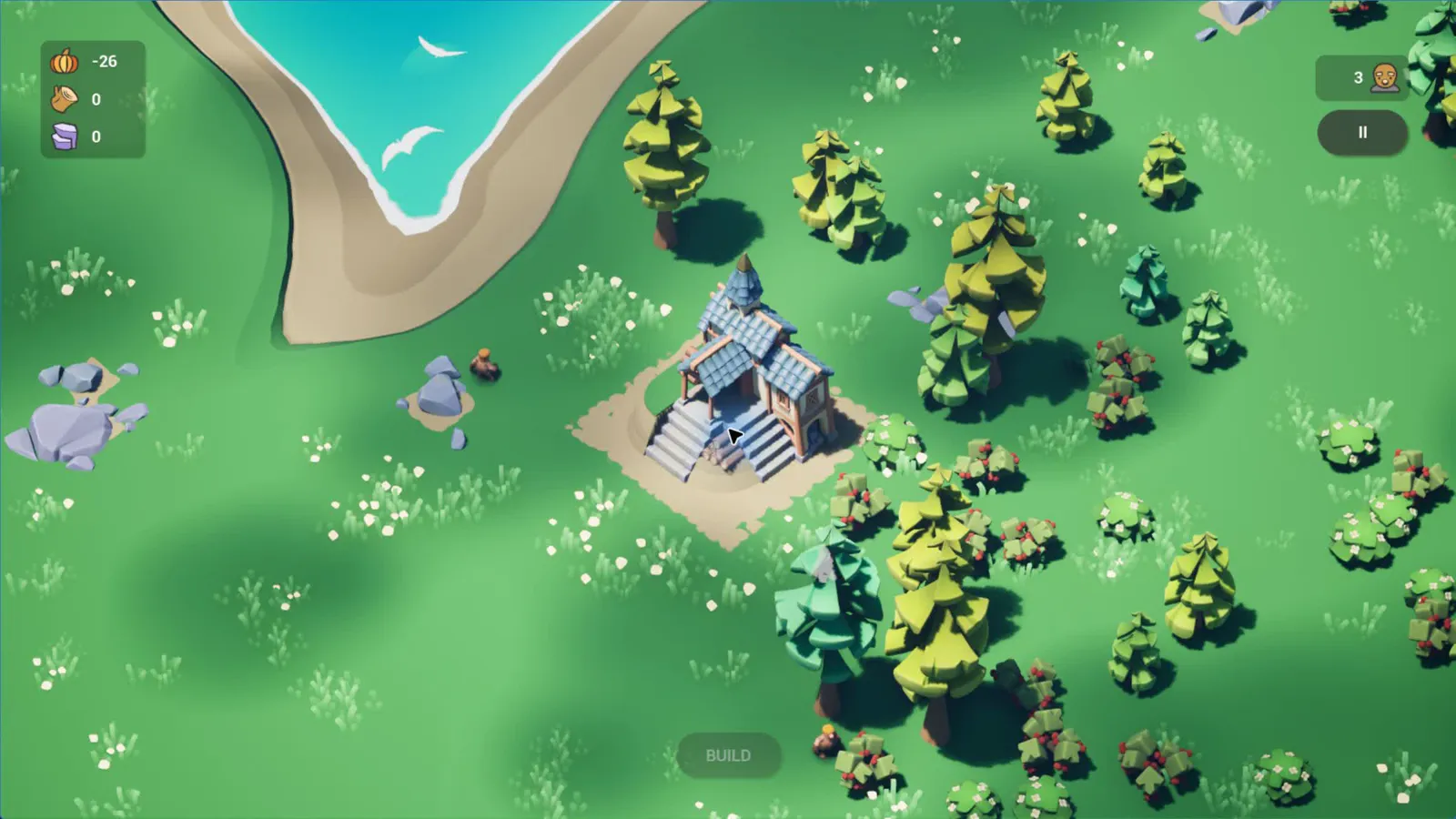
Cropout (Unreal Engine), built with frameDock. Cropout and its assets belong to Epic Games.
Inside the Cropout build workspace
A capture walkthrough made from real project, artifact and build-history screens on 14 October 2026.
Read the walkthrough
- The Projects view identifies the engine and readiness of each game.
- See Cropout on Unreal Engine 5.8 beside the existing Godot and Unity projects.
- Inspect the actual Cropout Windows Shipping artifact: 755.3 MB, 32 files, and SHA-256 controls.
- Open Builds to see its completed run and raw engine log.
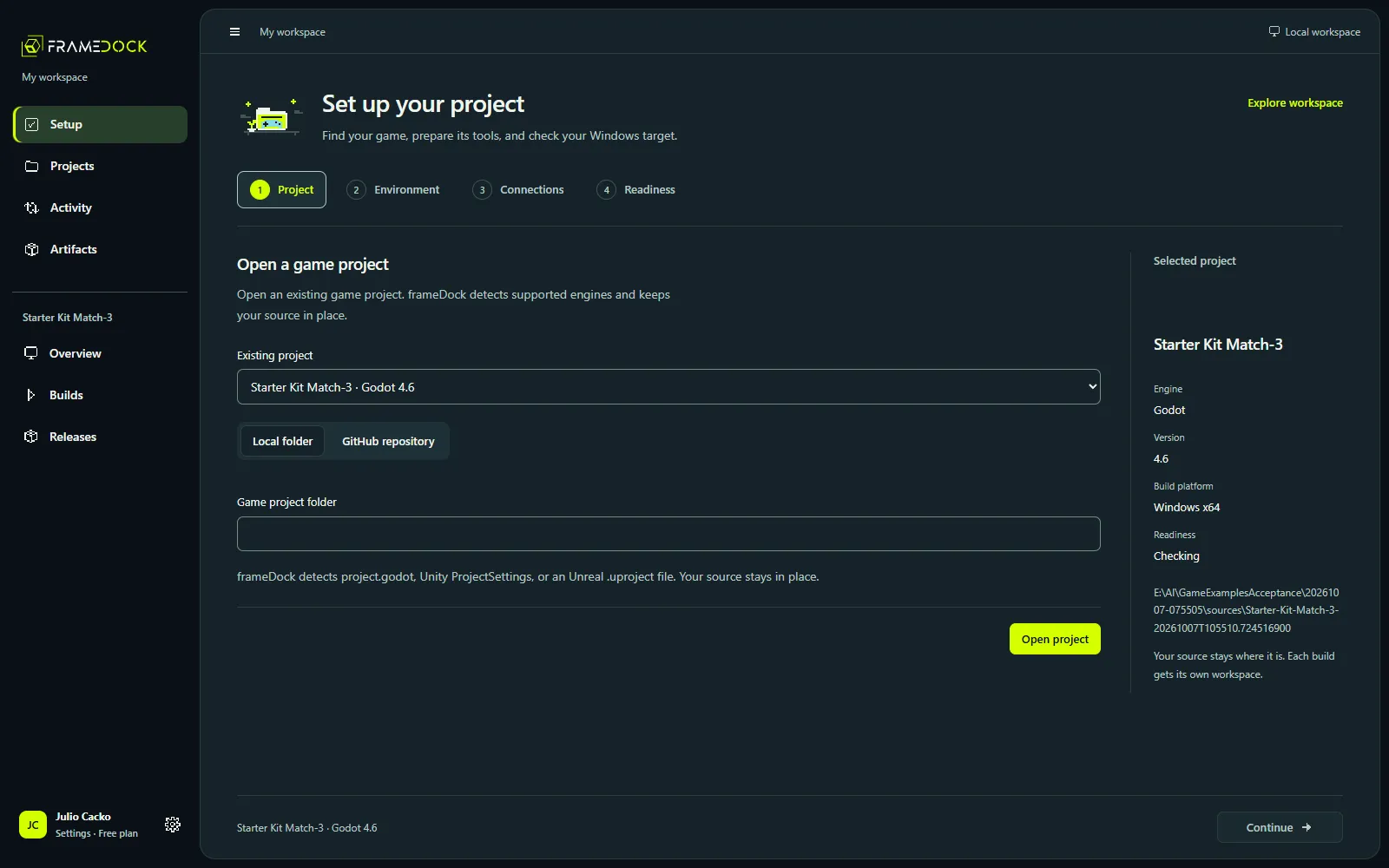
Choose a project
- You
- Open a local Godot, Unity or Unreal folder, or an authorized GitHub repository.
- frameDock
- Reads the project files to identify the engine and its version. Your source stays where it is.
- Result
- A project card with its engine, version and readiness.
Detect tools and requirements
- You
- Review the editor, build support, templates and licenses the project needs.
- frameDock
- Finds compatible installed tools and lists what is missing, without upgrading the project.
- Result
- A readiness check that passes, or names the exact missing requirement.
The four stages of project setup
Follow Project, Environment, optional Connections and Readiness in the current interface.
Read the walkthrough
- Choose an existing game project without moving its source.
- Environment checks the matching editor, Windows target and export requirements.
- Connections are optional for a local build.
- Readiness reports the required checks before you build.
Configure and run a build
- You
- Choose the target and configuration, then start the build.
- frameDock
- Copies the project into an isolated workspace and runs the matching engine command in a durable queue.
- Result
- A queued run you can cancel, and that resumes if the app restarts.
Run a real Windows build
Start a Godot Windows release in the current interface and follow its completed artifact.
Read the walkthrough
- Open the existing Godot project after its required setup checks pass.
- Choose New build, keep the Windows release target, and start the actual run.
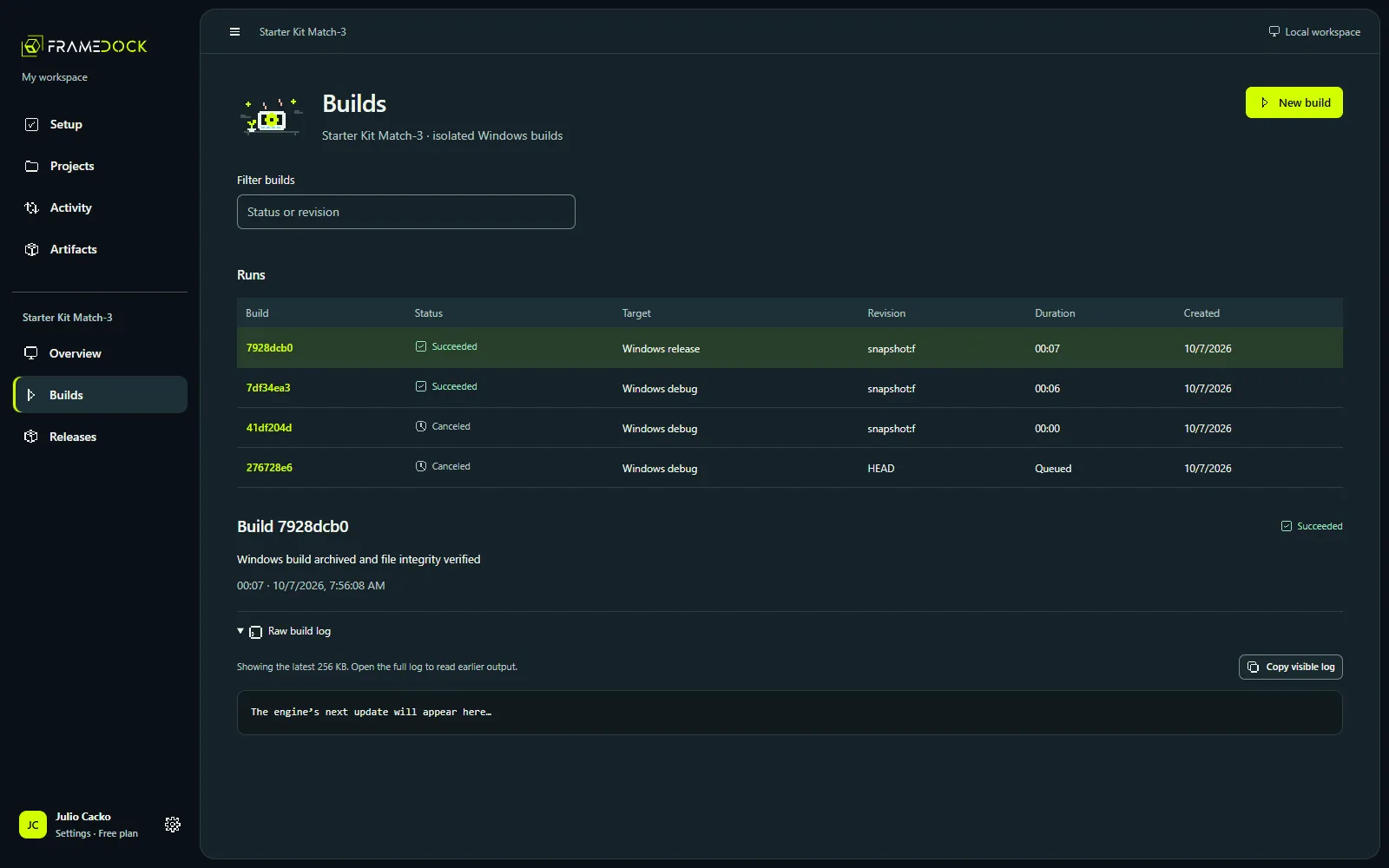
- Follow the real build while the production build service exports and archives the game.
- Inspect the new completed artifact.
Follow progress and logs
- You
- Watch progress, or open the original engine log when a step fails.
- frameDock
- Keeps the raw log beside readable diagnostics, so the first actionable error is easy to find.
- Result
- A completed, failed or canceled run with its full log kept.
Inspect the artifact
- You
- Open the result, check its files, then play the game.
- frameDock
- Archives the output as a ZIP with a SHA-256 file manifest and records the build configuration.
- Result
- An artifact you can verify file by file before sharing it.
Inspect a real Windows artifact
Read an existing build, inspect its files and expand a checksum.
Read the walkthrough
- Open the Godot example and its build history.
- Return to Overview to inspect the earlier completed Windows ZIP.
- Expand SHA-256 to see a file checksum and open the build details.
- Open the build details of the October 7 run.
Prepare a release destination
- You
- Choose the artifact and a supported destination, such as a private Steam branch or itch.io.
- frameDock
- Keeps the destination profile with the artifact you chose. Publisher credentials stay on your computer.
- Result
- A prepared destination, ready for your publisher credentials.
Prepare a destination
See how the selected artifact relates to Steam and itch.io release profiles.
Read the walkthrough
- Open the completed Godot project, then choose Releases.
- Inspect the artifact selected for release and the available destination controls.
- Add your publisher configuration to the destination before uploading.
Try it on your own project
Free for commercial games. 9 MB download for Windows and Linux.