Your first verified build, step by step
From a game project folder to an artifact you have checked and played. The shortest path through frameDock setup, with what each step should show.
A first build is done when you have played the result, not when a status turns green. This walkthrough follows frameDock’s setup in order and says what you should see at each step, so you know when to move on and when to stop.
Before you start
- A Windows 11 x64 or Ubuntu 24.04 LTS x64 computer.
- A working Godot, Unity or Unreal project you can open in its own editor.
- A backup, and enough disk space for an isolated copy of the source plus the build.
Unity and Unreal build for the operating system they run on. Supported Godot cross-exports remain available.
1. Install and sign in
Download the installer for your computer from the download page. Check the version, release status and SHA-256 before installing. The desktop app asks you to sign in with a one-time email link and a matching code; there is no password.
You should see: your local workspace after sign-in.
2. Open the project
Choose Open project and select the folder that contains the engine’s project file, not a parent folder or a built executable. A local folder is the shortest path; GitHub access is optional.
You should see: the correct engine and version on the project card. Your source stays where it was.
3. Resolve the environment
Open Setup → Environment. Reuse a compatible installed editor or pick the right executable, then review the target’s templates, modules, license and native toolchain.
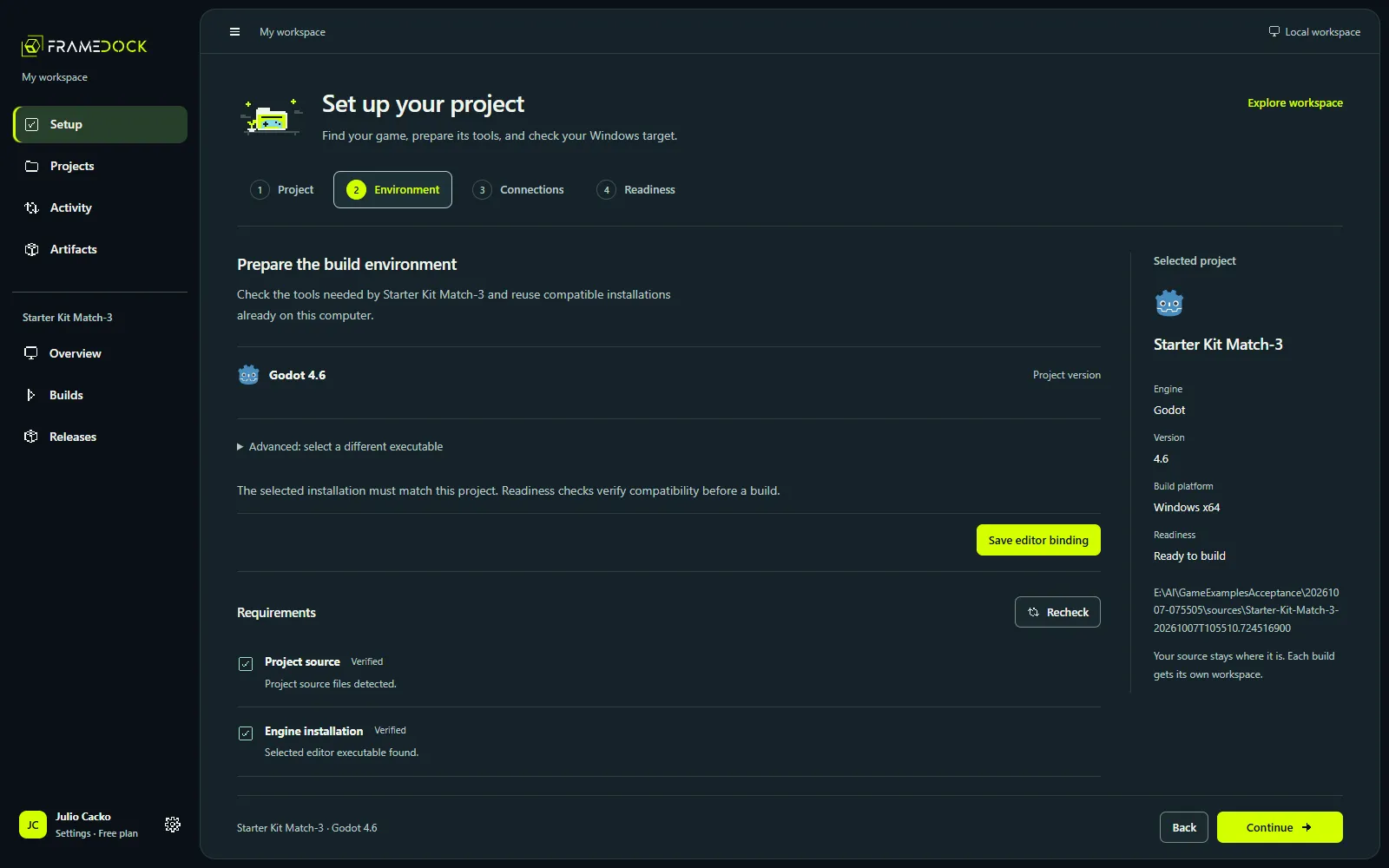
An installed editor alone is not enough. Godot needs matching export templates; Unity needs the target’s build support module and a valid license; Unreal needs the matching C++ toolchain and SDK.
You should see: every required row verified for this project and target.
4. Check readiness
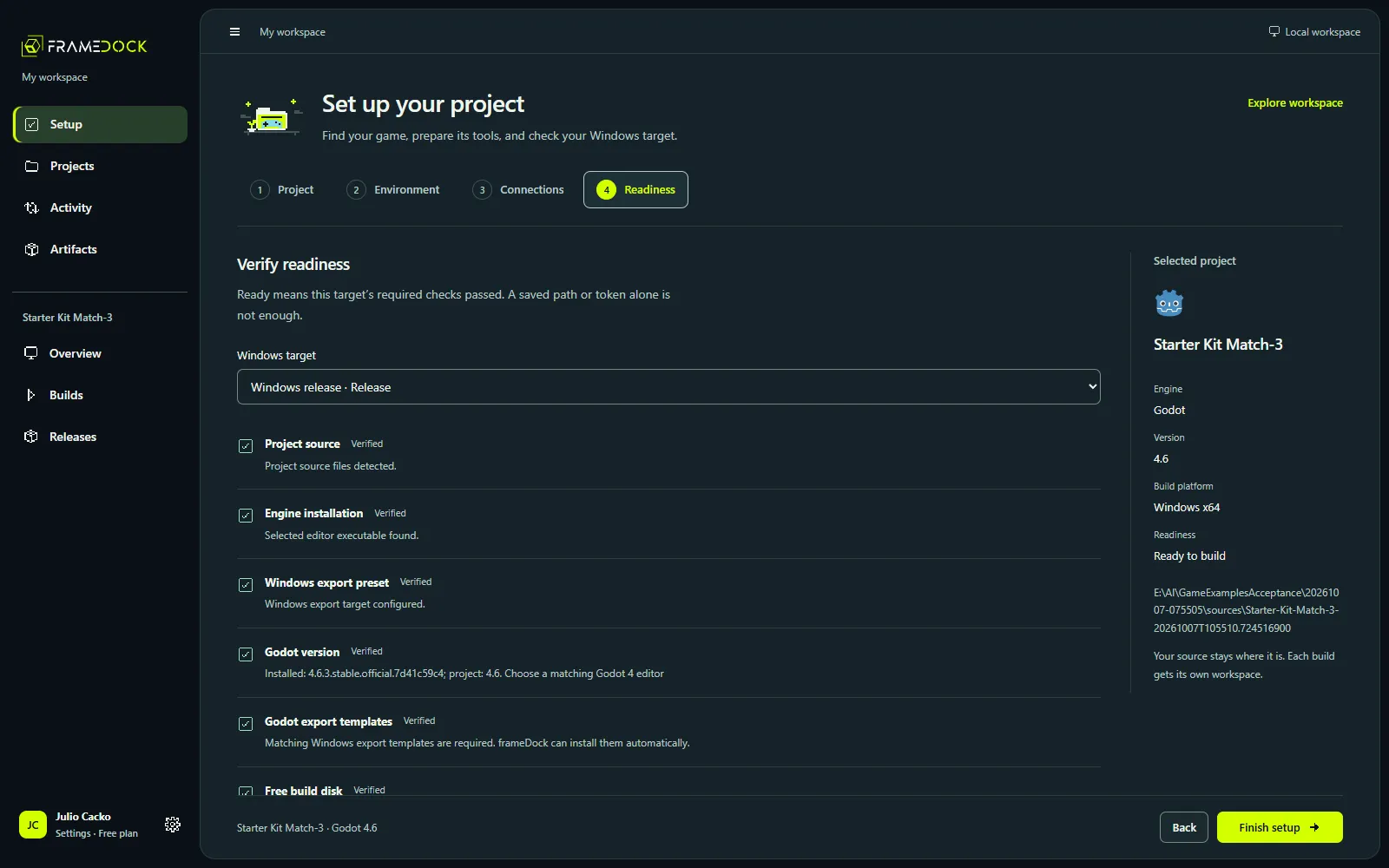
Setup → Readiness rechecks the selected target. Publishing connections are optional and do not block a local build.
You should see: Ready to build or Setup checks passed.
5. Build
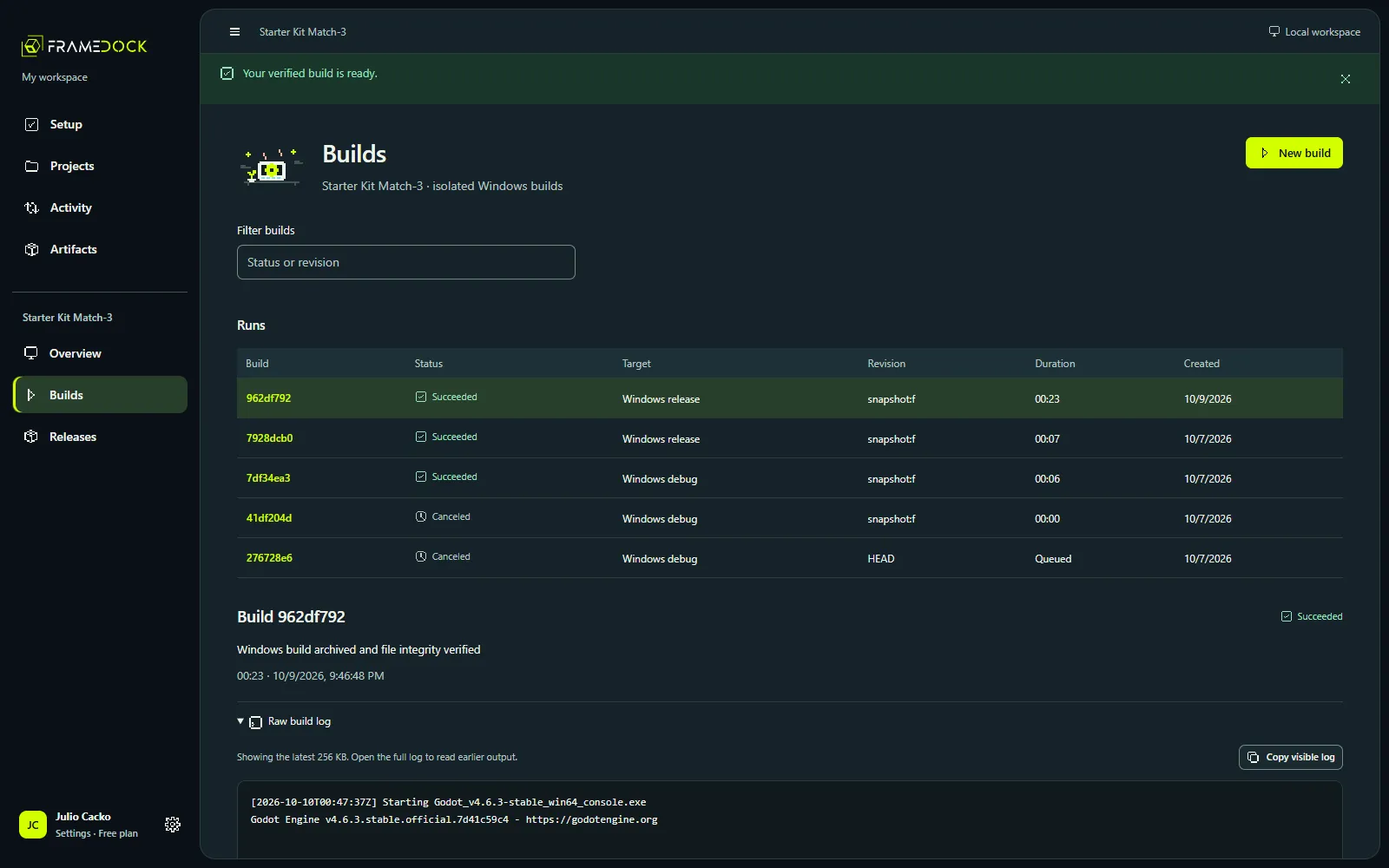
From the project overview choose New build, pick the target and configuration, and start. Follow progress and the raw engine log while it runs.
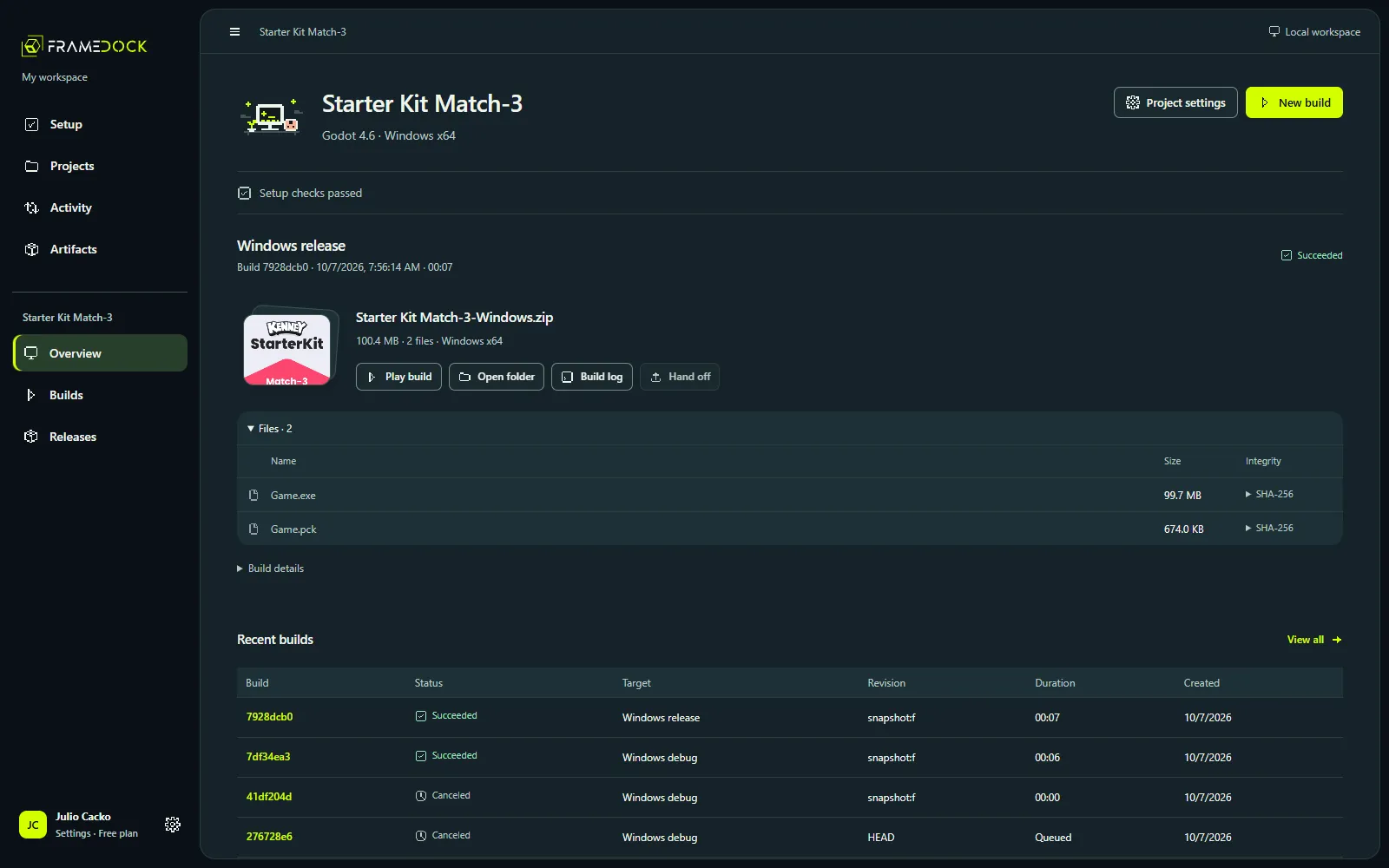
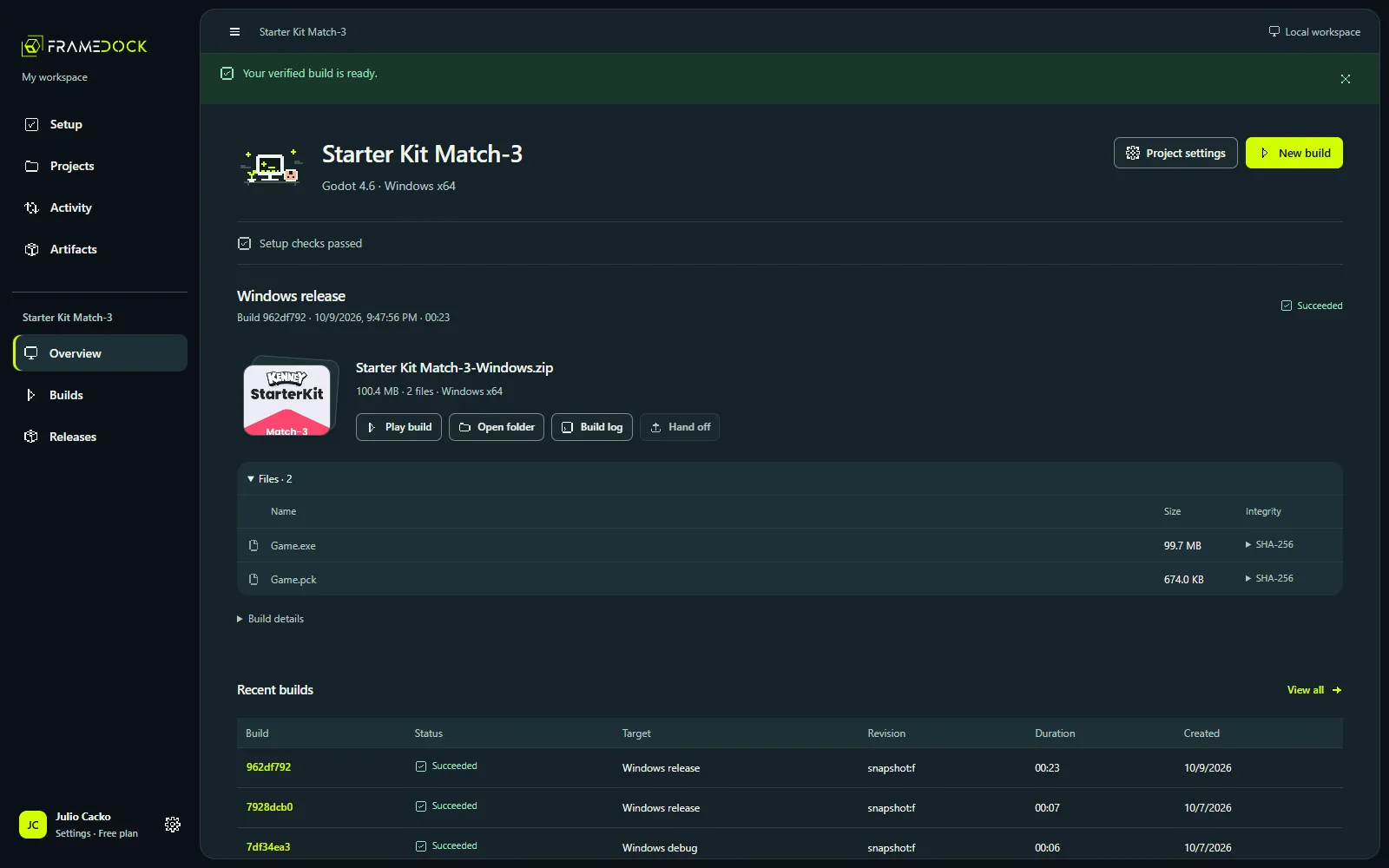
You should see: a completed run with a game archive and its file manifest. If it fails, open the original log and look for the first actionable error.
6. Check the files, then play
Inspect the archive’s files and SHA-256 values. Extract it to a fresh folder (keeping Linux executable permissions) and launch the recorded entry point. Check the entry screen, input, and the behaviour that matters for your game.
This last step is yours. frameDock can prove the files are intact; only you can say the game works.